
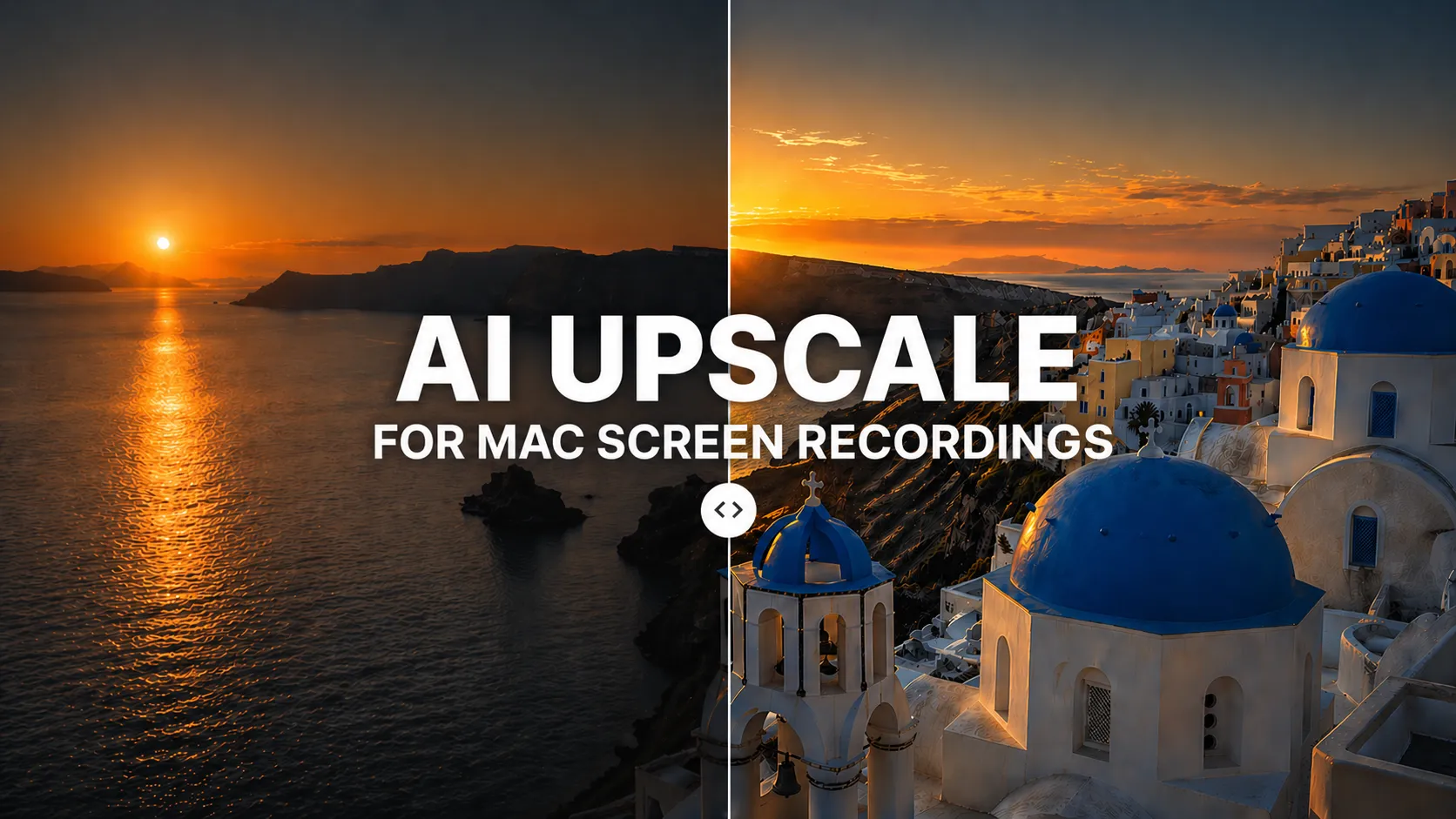
We've all been there — you record your screen, only to find the resolution is disappointingly low.
Just a few years ago, turning that into something sharp and crisp meant expensive professional software or a separate upscaling workflow. Not anymore.
AI has changed what creators can expect from everyday video tools, and Mac screen recorders are starting to bring upscaling closer to the export flow. Today, you can improve video quality without re-recording or sending every clip through a dedicated post-production app.
The honest truth is this used to mean re-recording, accepting blur, or opening separate upscaling software. It doesn't anymore. AI upscaling is moving into mainstream Mac recording and editing workflows, and the best version is the one that lives right where creators already make the final file: export.
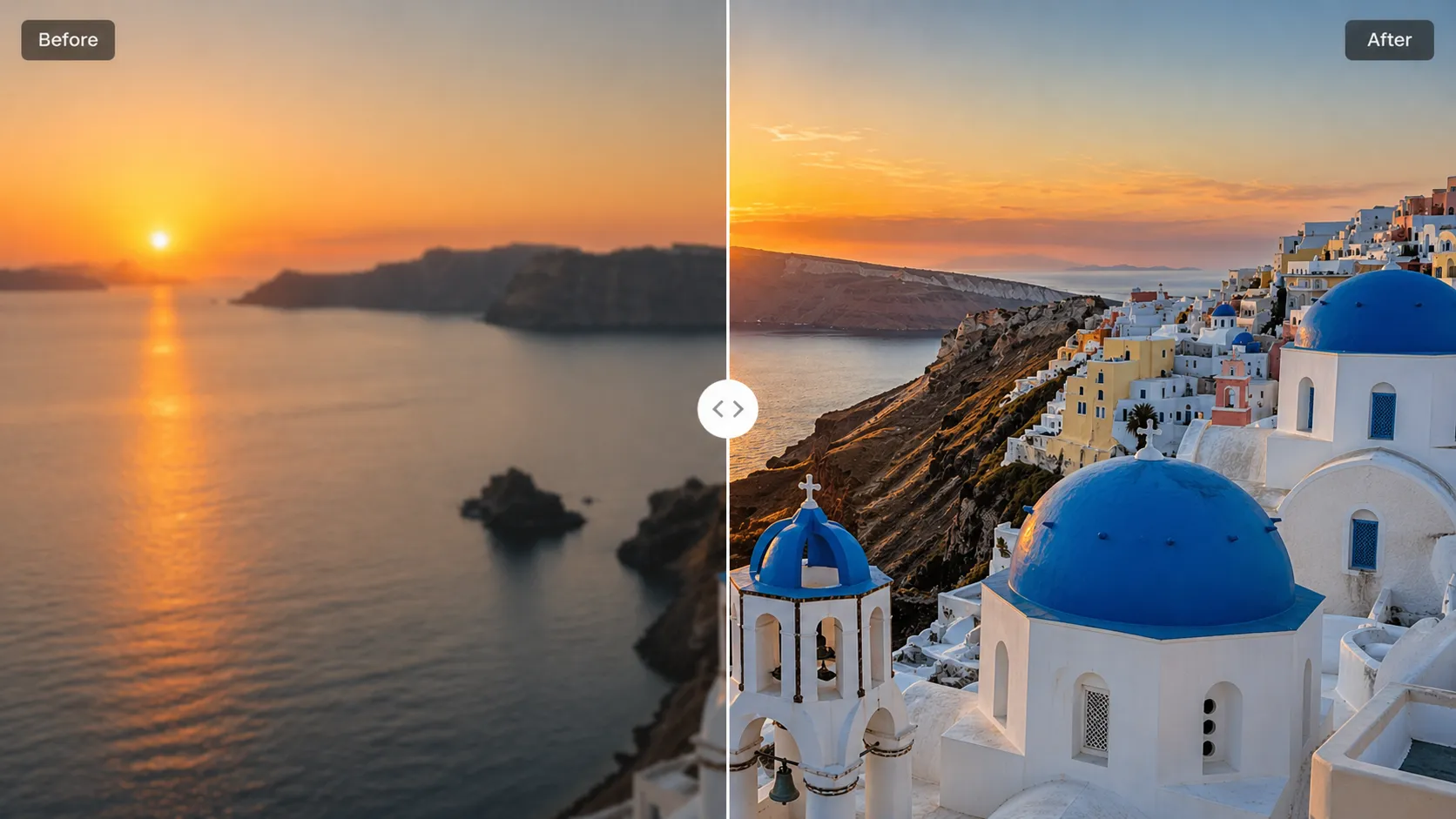
What AI upscaling actually does (and what bicubic can't)
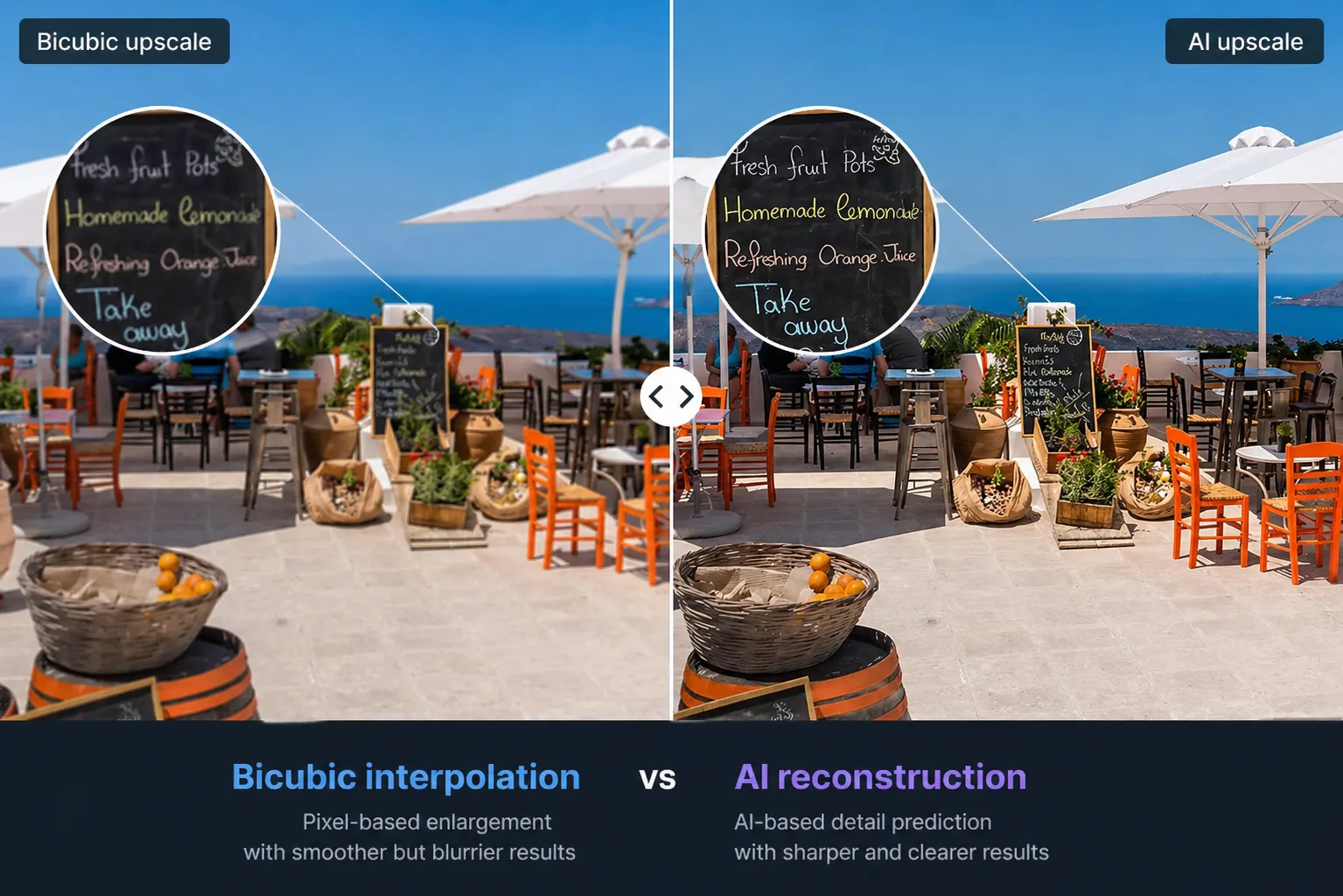
Traditional upscaling — the bicubic interpolation baked into many video tools — stretches pixels and guesses the in-between ones with an average. It's fast, it runs anywhere, and it often makes everything a little blurry, because averaging pixels is what averaging pixels does.
AI upscaling works differently. A neural network trained on high- and low-resolution image pairs learns what edges, textures, and letterforms should look like. Given a low-res frame, it reconstructs detail that looks like it belongs there, instead of simply smearing between pixels.
The result — especially on text and UI — is the difference between "bigger blur" and "actually sharper."
The trend pushing AI into Mac screen recording
Across the broader screen recording and video creation category, AI features are becoming more common:
- Automatic captions generated from the audio track
- Noise removal for room tone, hum, and keyboard clatter
- AI upscaling for lifting lower-resolution captures toward 4K output
- Highlight detection for finding useful moments faster
Upscaling is the one that most directly changes what lands on YouTube, a course platform, or a landing page — which is why creators have been paying closer attention to it than the rest.
I tested Clipa Studio's AI Upscale — here's what changed
Clipa Studio is a macOS-native screen recording and editing app that bakes AI upscaling directly into the export step. No separate upscaling app, no intermediate render, and no need to leave the editor just to improve resolution.
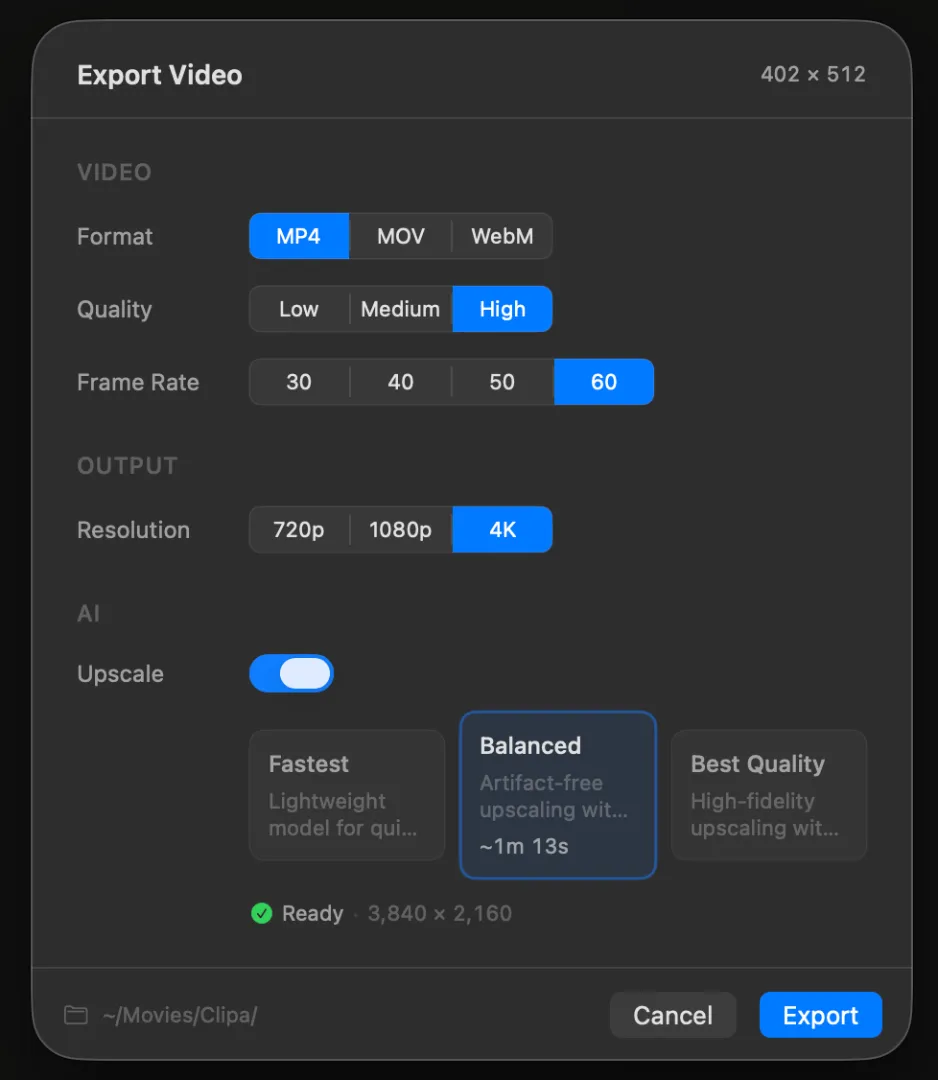
The export flow
- Finish recording and editing, then open the Export panel
- Set output resolution higher than the source, such as 1080p → 4K
- Toggle Upscale on
- Pick an AI model — download it once, then use it locally afterward
- Hit Export
Real-world results on an M2 MacBook Pro
I ran a 3-minute IDE recording through a 1080p → 4K upscale. Your exact processing time will vary depending on Mac model, selected AI model, frame rate, source resolution, and export settings, but this was my test result:
| Metric | Original | After AI Upscale |
|---|---|---|
| Resolution | 1080p | 4K (3840×2160) |
| File size | ~120 MB | ~380 MB |
| Processing time | — | ~6–8 min for this 3-min test clip |
| Visual result | Text mushy on external display | Code and UI text noticeably sharper |
The biggest wins came in terminal and IDE captures. Character edges that had dissolved into anti-aliased grey became more defined, and the result looked much more comfortable on a large external display.
The three SR models Clipa Studio ships with
Clipa exposes three super-resolution models at export time. They run as x4 super-resolution models internally, and Clipa exports to the final resolution you choose, such as 4K. After a one-time download, the models run locally on your Mac.
| Model | Strengths | Best for |
|---|---|---|
| Real-ESRGAN | Highest quality · RGB 3-channel input · strong detail recovery | YouTube uploads, final deliverables |
| FSRCNN | Balanced · stable output, lightweight Y-channel model | General demos and tutorials |
| ESPCN | Fastest · lightweight, speed-first Y-channel model | Quick previews, rough drafts |
If you're not sure which to pick: Real-ESRGAN for anything going public, ESPCN for anything you'll re-export later, FSRCNN for everything in between.
AI upscale vs. traditional upscale
| Aspect | Traditional (bicubic) | AI upscale |
|---|---|---|
| Method | Pixel interpolation | Deep learning reconstruction |
| Quality gain | Modest, often introduces blur | Stronger edge and text recovery |
| Processing time | Near-instant | Slower; can take minutes depending on settings |
| Best use case | Temporary previews | Final deliverables |
For anything that's going to be watched by someone who isn't you, AI upscaling can make a visible difference.
Where AI upscaling makes the biggest difference
- MacBook Air recordings that look crisp on Retina but fall apart on a 4K external monitor
- Old 720p lectures or demos being reissued against today's 1080p / 4K expectations
- Zoom and Meet recordings where platform compression has already done its damage
- Slide-heavy tutorials and walkthroughs where readable text is the entire value proposition
- Terminal, IDE, dashboard, and SaaS product demos where UI clarity matters more than cinematic motion
Where AI upscaling works Best
AI Upscale is most useful when the source already contains structured detail, like code, terminal text, app UI, slides, or product demos.
It works less well when the source is already heavily compressed, motion-blurred, or missing detail. For webcam overlays and imported live-action clips, reconstructed texture can sometimes look less natural.
Think of it as a way to make a usable screen recording noticeably sharper, not as a replacement for recording clean source footage in the first place.
FAQ
Does AI upscaling work offline?
In Clipa Studio, yes. Models download once and run locally afterward — useful if you're editing while traveling or simply don't want your footage round-tripping through a cloud service.
Do I need a specific Mac for AI upscale?
Clipa Studio is built for modern macOS and works best on Apple Silicon Macs. Processing time depends heavily on hardware, model choice, resolution, and frame rate.
Can I upscale footage I didn't record in Clipa Studio?
Yes — import the clip into the Clipa timeline and run the same export flow. The upscaler doesn't depend on whether the source came from Clipa's own recorder.
What macOS version does Clipa Studio require?
Clipa is built on Apple's ScreenCaptureKit and requires macOS 15.0 or later.
Screen recording isn't just about capturing anymore — the quality of what you ship is table stakes. With a native macOS app like Clipa Studio, you can improve resolution and clarity without leaving the export panel.
→ Download Clipa Studio and try AI Upscale on your own recordings.